
Wujee on iPhone
On iPhone you use the Wujee web version. Add it to your Home Screen and the icon opens it full screen, with message notifications just like an app (iOS 16.4 or later).
web.wujee.app
Method 1 · Add to Home Screen Simplest
Uses Safari's built-in feature. Nothing to download.
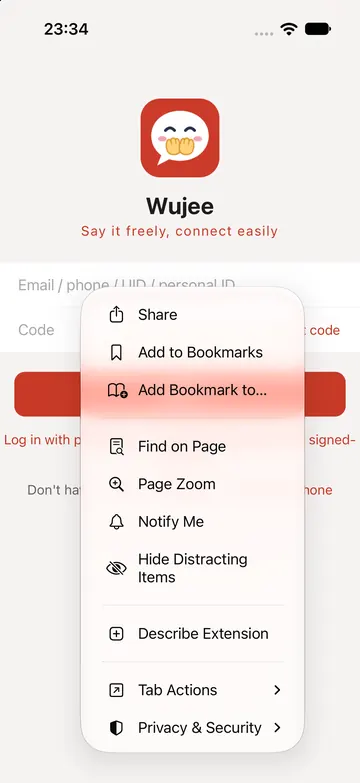 Open web.wujee.app in Safari, tap the menu next to the address bar, then Share
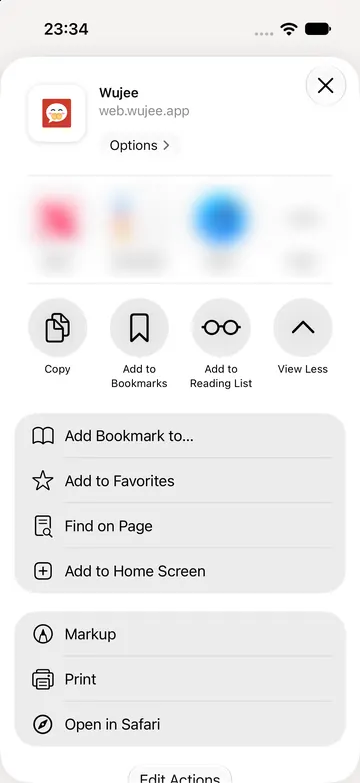 Choose "Add to Home Screen" (tap "View More" first if you don't see it)
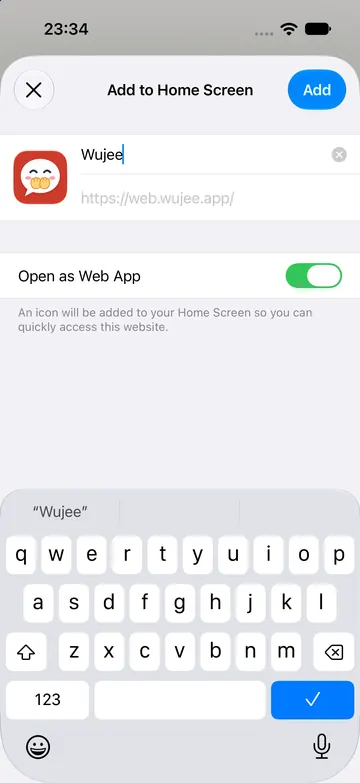 Keep "Open as Web App" on and tap "Add"
Method 2 · One-tap install
Download a profile that only adds the Wujee icon to your Home Screen. It changes nothing else.
One-tap installOpen this page in Safari, then tap
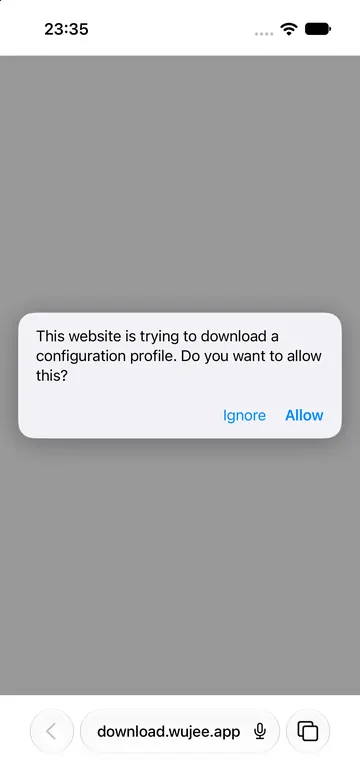 Tap "One-tap install", then "Allow" in the pop-up
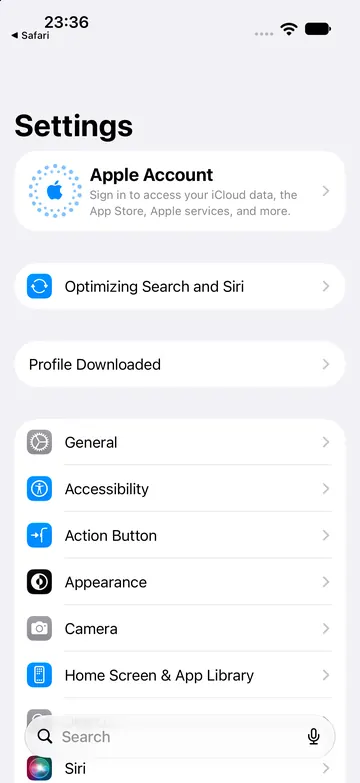 Open Settings and tap "Profile Downloaded" at the top
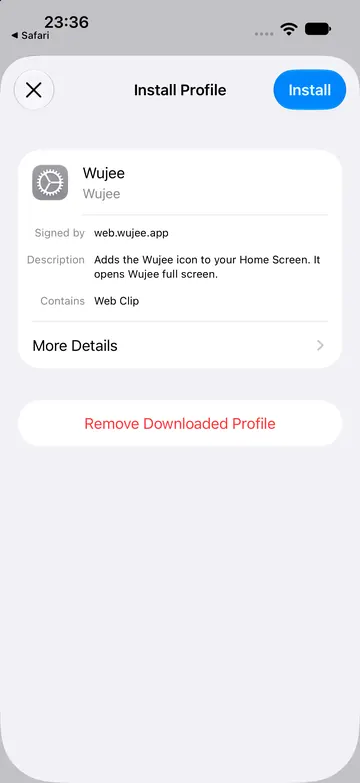 Tap "Install" in the top right. The Wujee icon appears on your Home Screen
Questions
- Not using Safari?
- Both methods only work in Safari. In another browser or a chat app, copy web.wujee.app and open it in Safari.
- How do I turn on notifications?
- Open Wujee from the Home Screen icon, sign in, then tap "Turn on notifications" at the top of your chats. Needs iOS 16.4 or later.
- Why do I need to sign in again?
- Wujee opened from the Home Screen icon is kept separate from Safari, so you sign in once the first time you open it.
- How do I remove it?
- Method 1: press and hold the icon → "Delete Bookmark". Method 2: Settings → General → VPN & Device Management → Wujee → "Remove Profile". Your chats stay in your account.